Quick answer
On Android TV or Google TV, prefer the Play Store or the app developer's official TV listing when one exists. For a sideloaded APK, verify the source, package name, version, Android requirement, file size and requested permissions first. Transfer the file by USB, a trusted file manager or ADB, allow installation only for the app you are using, install it, test D-pad navigation and playback, then turn that permission off again. A file ending in .xapk, .apks or another bundle format is not automatically the same as a single .apk and may need a compatible installer or a different official package.
| Primary keyword | how to install apk on android tv |
|---|---|
| Search signal | Similarweb question/phrase data: about 628 monthly searches and 800 in the latest 28-day window; difficulty 0 |
| Preferred route | Play Store or a verified developer TV package before sideloading |
| Package warning | APK, XAPK and split packages can require different installation handling |
| Freshness rule | This page does not claim a latest app version or provide an unverified APK direct link |
1. Decide whether you need an APK at all
The Play Store is usually the cleanest route because it can match an app to the device and manage updates. Search for the app on the TV first. If the listing is missing, check the developer's official support or release page before looking at a third-party file. A generic Android APK may install but still be designed for touch screens, portrait layouts or phone-only services.
- Use the TV or Google TV store listing when the app is available there.
- Treat an APK mirror or download page as a source to verify, not as proof of safety.
- Keep brand-specific app questions on the matching Cinemana, Shabakaty Share or Shabakaty TV guide.
2. Check the APK, XAPK or split package before transfer
A single .apk is the normal Android package format, while .xapk, .apks and similar bundles can contain a base package plus extra files or split APKs. Before copying anything to a TV, record the source URL, package name, version, Android minimum, file size and permissions. If those details are absent or change between pages, stop and use a clearer first-party route.
- Compare the package name and developer identity with an official listing or release note.
- Do not rename a bundle to .apk and expect Android TV to install it correctly.
- Avoid files that request unrelated access, hide the version, or use a shortened redirect with no publisher context.

3. Prepare Android TV for a controlled sideload
Android TV and Google TV menu names vary by device and software version. The setting is normally an app-specific permission for the browser or file manager that will open the package. Turn it on only when you are ready to install, keep Play Protect and normal device security checks enabled, and turn the permission back off after the test.
- Install or update a trusted file manager from the TV store when possible.
- Allow unknown-app installation only for the file manager or browser you are actively using.
- Make room for the package and confirm that the TV has enough storage for the app's cache and updates.
4. Move the file by USB, file manager or ADB
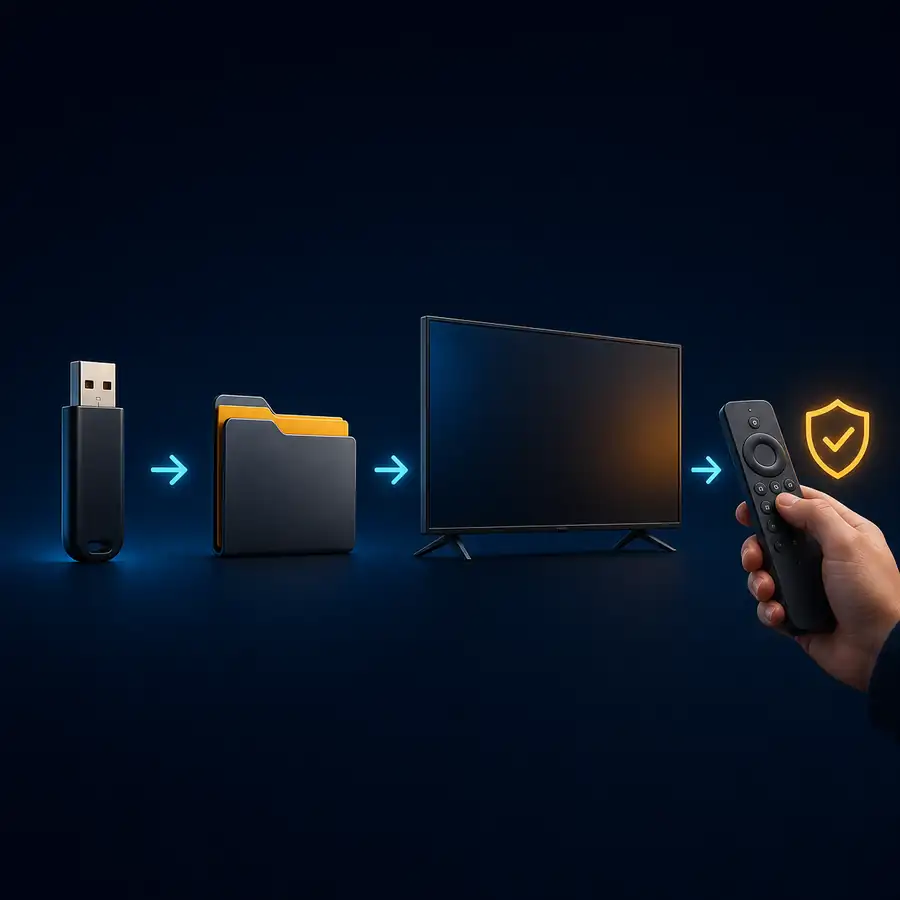
USB is useful when the TV can read the drive and the file manager shows its real name and size. A cloud or local-network file manager can work when both devices are trusted. For technical users, Android Debug Bridge can install a compatible APK and can handle multiple APKs with the appropriate command, but ADB is not a shortcut around package compatibility or source verification.
- Use a known USB drive or a trusted transfer path; do not install from a random pop-up.
- Open the file from the file manager and confirm the extension before accepting the prompt.
- Use ADB only when developer options, network pairing and the package source are understood.
5. Test TV compatibility after installation
Installation success does not prove that an app is TV-ready. Android TV apps should be usable with a D-pad or remote, with focus visible on buttons and menus. Test launch, sign-in, search, playback, pause, back, exit and return to the home screen. If the app opens in portrait mode, hides focus, requires touch, or cannot play the expected media, uninstall it rather than forcing an unsafe workaround.
- Check focus movement, readable text and predictable Back-button behavior.
- Test the same network, date/time and account conditions used for normal playback.
- Remove the package and revoke the file-manager permission when the result is not a fit.
A practical Android TV APK checklist
-
Start with the official TV listing
Search the Play Store on the TV and check the developer's official page. Use sideloading only when the app and source make sense for the device.
-
Record the file identity
Write down the source, package name, version, Android requirement, file size and permissions before the file reaches the TV.
-
Transfer the package
Choose USB, a trusted file manager, local network transfer or ADB. Keep the original extension and do not install a renamed bundle.
-
Grant one temporary permission
Allow installation for the exact browser or file manager opening the package. Labels differ by TV brand and software version.
-
Install and test with the remote
Check focus, Back, search, sign-in, playback and exit, then turn off the temporary permission and remove the installer file. A phone-first app may install but still fail as a TV experience.
Common Android TV APK problems
The APK says app not installed
Check Android compatibility, available storage, package architecture and whether the file is actually a bundle. Do not keep retrying an unknown file.
The app installs but does not appear on the home screen
It may be a phone-only package without a TV launcher entry. Look in Settings or Apps, then use a TV-compatible listing instead of forcing a launcher shortcut.
The remote cannot select buttons
The layout may require touch input or lack TV focus handling. A mouse can diagnose the issue, but it does not turn a phone app into a good TV app.
An XAPK or APKS file will not open
Those extensions can represent bundles or split packages. Use a compatible, trusted installer documented by the publisher, or find the official single-package TV release.
Official references and freshness notes
This guide was checked on August 16, 2026 against Android Developers and Google support material. It is a generic installation guide, so there is no app-specific version or download CTA to refresh. Any app page should still be checked separately for a current first-party release before installation.
- Android Debug Bridge documentation - Official reference for connecting to a device and installing compatible packages with ADB.
- Android TV app quality guidance - Official Android TV material covering TV layouts, remote and D-pad interaction.
- Android package and app security help - Google support reference for Play Protect and checks around apps from outside Google Play.
- Android TV Help - General device support; menu names and sideload settings can differ by TV and software version.
Choose the next guide
APK install instructions
Use this for the general Android install prompt, blocked installation messages and what to check after tapping a download button.
Read the APK install instructionsCinemana Leanback on TV
Use this when the question is specifically about Cinemana on a television, remote navigation or TV playback fit.
Open the Cinemana TV guideShabakaty TV guide
Use this for channels, live matches and Shabakaty TV service questions rather than a generic APK sideload.
Read the Shabakaty TV guideShabakaty download guide
Use this when the user is choosing between Cinemana, Share, TV and Store before downloading a brand-specific app.
Compare Shabakaty download routesFirestick APK installation
Use this Fire TV-specific guide for platform checks, transfer, permissions and remote testing.
Read the Firestick APK guideHow to install APK on Android TV FAQ
Can I install any APK on Android TV?
No. The package may target a different Android version, processor, screen layout or input method. Check the source and compatibility first, and prefer the official TV listing when available.
How do I install an APK on Android TV with a USB drive?
Copy the verified file to a trusted USB drive, open it with a TV file manager, allow installation for that file manager if the TV asks, install it, test it with the remote, and turn the permission off afterward.
Can I install XAPK on Android TV like a normal APK?
Not necessarily. XAPK, APKS and similar extensions can contain multiple files or split APKs. Use a trusted compatible installer documented by the publisher, or look for a supported single APK or TV release.
Is it safe to enable unknown apps on Android TV?
It increases the responsibility on the user and the source. Enable it only for the app opening the file, keep security checks on, install from a verified source, and disable the permission when finished.
Why does an APK install but fail with the remote?
A phone-first app may depend on touch input or portrait layout. Test focus, Back, menus and playback; if those fail, use a TV-compatible build or the official store route.