Quick answer
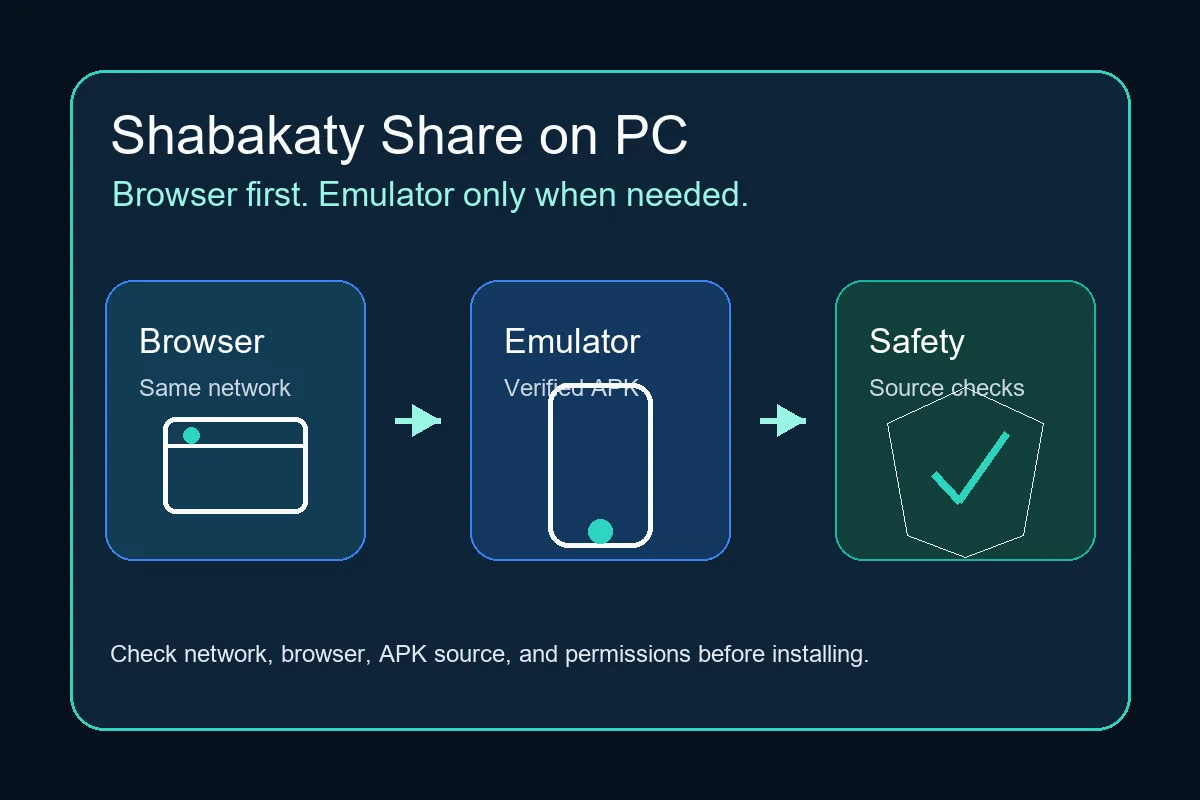
For most PC users, the safest first step is to try the Share web route in a normal browser on the same network. Use an Android emulator only if you need the APK interface or an app-only feature. If the page does not open, check the connection, DNS, browser cache, and network restrictions before installing random Windows packages.
| Main keyword | Shabakaty Share for PC |
|---|---|
| Also searched as | earthlink share for pc, Shabakaty Share Windows, share.shabakaty PC |
| Best first method | Desktop browser on the correct network |
| When to use emulator | Only when browser access is not enough and the APK source is verified |
PC access methods compared
The right method depends on what you want to do. A browser is simpler for file access, while an emulator is heavier and should be treated like an Android install.
| Method | Best for | Check first |
|---|---|---|
| Desktop browser | Opening Share links, checking folders, and avoiding APK install risk | Same network, updated browser, working connection |
| Android emulator on Windows | Testing the Android app workflow when a browser cannot do the job | APK source, package details, emulator permissions |
| Android phone plus PC transfer | Downloading on Android first, then moving safe files to PC | File type, scan result, and source clarity |
Should you use the browser or an emulator?
Choose the browser first when you only need to open Share or inspect files. It avoids emulator setup, extra permissions, and duplicate APK installs. Choose an emulator only when the task truly needs the Android app screen or app-specific behavior.
- Do not install a Windows EXE just because it uses the Shabakaty name.
- Keep Share, Cinemana, TV, and Store as separate apps and search intents.
- If one method fails, record the error before trying another method.
How to open Shabakaty Share on Windows safely
Start from the simplest path: open your browser, use the same network where Share normally works, and test whether ordinary websites load. If Share is blank, try another browser and clear cache before changing DNS or downloading new APK files.
- Use a current browser such as Chrome, Edge, or Firefox.
- Avoid browser extensions that rewrite local or provider links.
- Do not enter account details into lookalike pages.
Using an Android emulator without mixing up sources
Emulators can run Android APK files on Windows, but they do not make an unknown APK safer. Check the package name, version, requested permissions, and download source. If the file claims to be Share, Cinemana, and TV at the same time, stop and verify it again.
- Install only one emulator if you need testing.
- Use a clean emulator profile for unknown APK checks.
- Remove the APK if it requests unrelated permissions.
Why Earthlink Share for PC may not open
Searches for earthlink share for pc usually point to a network-access question. The failure may come from provider routing, DNS, temporary service availability, cache, or a link that only works inside a specific network environment.
- Test the link on the same network from both phone and PC.
- Restart the router only after confirming other websites work.
- Avoid VPN changes unless you can restore the original setting.
Step-by-step PC checklist
-
Confirm the task
Decide whether you need to open a Share link, install an Android app, or troubleshoot a failed PC page.
-
Try the browser first
Open the Share route in a desktop browser on the expected network and confirm the page loads before installing anything.
-
Check the network
Compare phone and PC access on the same connection. If both fail, the issue is unlikely to be a Windows-only problem.
-
Use emulator only if needed
If browser access cannot satisfy the task, use a reputable emulator and verify the APK source before installing.
-
Keep the setup clean
Remove duplicate APK files, clear cache after failed tests, and keep notes about which source and version you tried.
Common Windows and PC problems
Share opens on phone but not PC
Check whether the PC is on the same network, disable proxy/VPN temporarily, and test another browser.
The emulator installs the APK but Share stays blank
Clear the app cache, check emulator network mode, and verify that the APK version matches the source you intended.
A site offers a Shabakaty Share Windows installer
Be cautious. Prefer browser access or an Android emulator over unknown EXE installers unless the source is clearly trusted.
The page loads but files do not appear
Check permissions, browser blocking, temporary service state, and whether the link requires a provider-specific network.
External source notes
The public SERP shows PC-focused pages for this search intent, but they should be treated as emulator/browser guidance rather than proof that a Windows-native Shabakaty app is official.
- GameLoop PC listing for Shabakaty Share - Shows the PC/emulator interpretation of the query.
- BrowserCam Windows guide for Shabakaty Share - Another PC guide pattern focused on Android-emulator setup.
Helpful internal links
Main Shabakaty Share guide
Use this when your question is about Share access, APK safety, or Android use rather than PC setup.
Open Shabakaty Share guideShabakaty Earthlink guide
Use this when the problem looks like network compatibility rather than a Windows setup issue.
Check Earthlink compatibilityAPK installation instructions
Use this before installing any APK in Android or an emulator.
Read install instructionsShabakaty Share for PC FAQ
Is there an official Shabakaty Share app for Windows?
Do not assume there is a Windows-native app just because a page says Shabakaty Share for PC. For PC use, start with browser access or a verified Android emulator workflow.
What is earthlink share for pc?
It is usually a search phrase for opening Share from a computer on an Earthlink or Shabakaty-related network. Treat it as a network and access-method question.
Can I use an Android emulator for Shabakaty Share?
Yes, if you need the Android app workflow, but verify the APK source, package details, and permissions first.
Why does Share work on my phone but not Windows?
The PC may be on a different network, use a proxy/VPN, have DNS issues, or be blocked by browser cache or extensions.