Quick answer
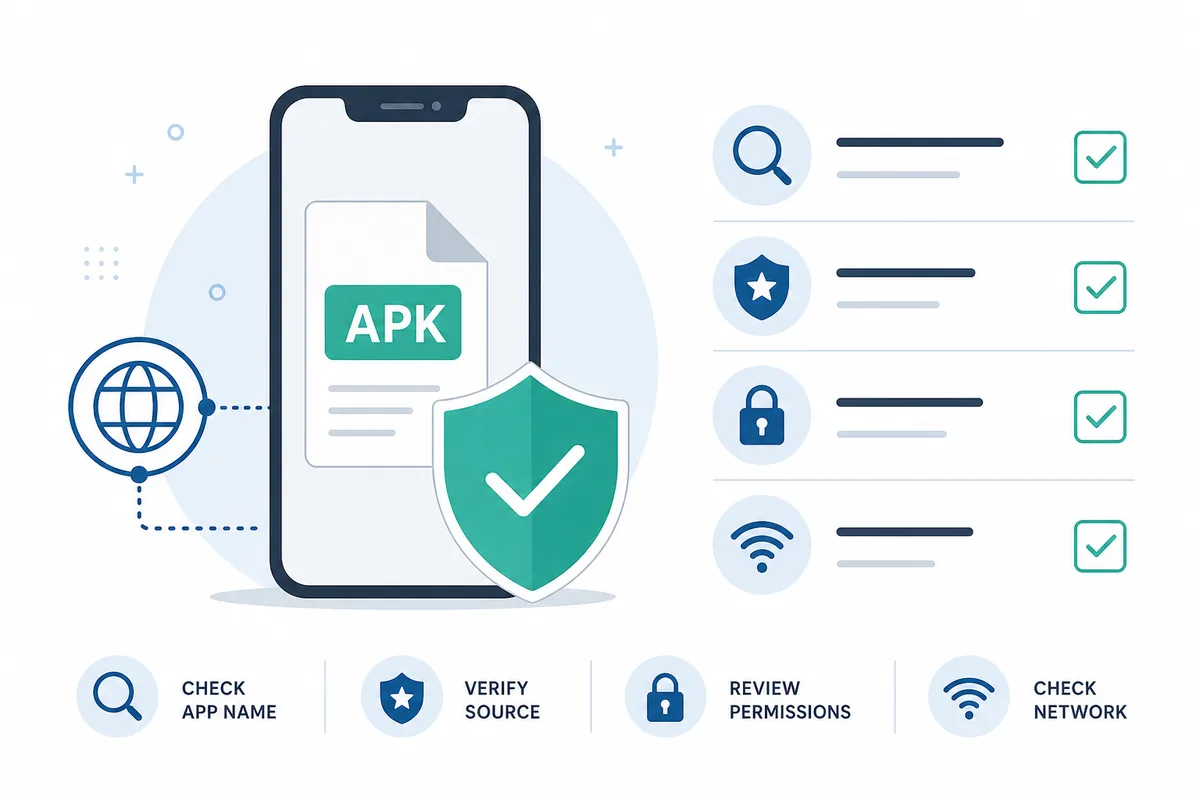
To verify Shabakaty APK before installing, start with a traceable source instead of trusting a filename or a version number on an unknown page. Match the package name and developer identity to a source you can explain, and record the file size, version and Android requirement. If you have a known-good copy, compare the signing certificate or SHA-256 value; when the publisher does not provide a reference, record that verification gap instead of inventing a match. Review permissions, add a reputable scan or Play Protect check, and allow installation only for the app opening the file. Revoke that permission afterward and watch for pop-ups, battery drain, unusual data use or new apps. No single check proves a file is safe, but this sequence reduces rushed installs and gives you a clear way back.
| Primary keyword | verify Shabakaty APK before installing |
|---|---|
| Search intent | Verify an APK source, identity and safety before installation |
| Best first test | Match the source, package and signer while keeping Play Protect enabled |
| This guide does not provide | An unverified download link or a guarantee that an unknown file is safe |
| Freshness boundary | No latest-version claim; check the publisher source on the install date |
1. Decide what you are checking first
Before tapping Install, write down the app you actually need: Cinemana, Shabakaty Share, Shabakaty TV or another package. Their identities, permissions and update paths can differ, so Shabakaty APK is not one universal file. Ask where the link came from, who publishes it and whether you need an APK at all. If you only need to open a Share page, do not install an app because a download page showed an aggressive banner. If you want channels, keep the TV task separate from the Share task. Defining the job keeps you from choosing a modified build or a package that was never designed for your device.
- Write the app name and intended package before searching for a file.
- Keep Cinemana, Share and TV separate instead of trusting a generic name.
- Ask whether a browser or the device store already solves the task.
- Treat a download button or the word latest as a claim to verify, not proof of an official source.
2. Check the source, developer and package identity
The source is the first verification layer, but it is not a final safety certificate. Prefer a publisher domain or release page that you can connect to the developer, then compare the app name, developer name and stated purpose. Notice whether the page jumps across unrelated domains, asks you to disable protection or hides the package name. After downloading, inspect the file information and record its full name, extension, size and acquisition date. If the package name differs from the source or the file has a commercial label unrelated to the description, stop. Do not delete a working older version until you understand the signing difference; removing it can lose data without fixing the problem.
- Prefer a traceable publisher page over an unexplained short link.
- Match the package name to the source instead of checking only the icon label.
- Record the size, version, extension and Android requirement before transfer.
- Stop when a page asks you to disable Play Protect or install an unexplained helper.

3. Compare the signature, hash and update path
An Android signature connects updates to a developer key. When you already have a known installation, Android can reject a replacement signed with a different key; that signal matters more than a higher version number. Technical users can read an APK certificate with Android tools such as apksigner or compare a SHA-256 value published by the developer. If no reference hash exists, record the limitation rather than creating a false match. Pay attention to XAPK, APKS and split packages: they may need a dedicated installer and do not become a valid single APK when renamed. Also compare the Android requirement and CPU architecture, because a genuine file can still be wrong for your device.
- Compare the signing certificate when an original copy or publisher value is available.
- Use SHA-256 as an identity comparison, not as a substitute for a trusted source.
- Never rename XAPK or APKS to APK to bypass an install message.
- Record a package or signer mismatch before removing a working build.
4. Review permissions and Play Protect
Permissions should fit the app's purpose. A video or file-browsing app may need focused access, but it does not automatically need messages, contacts or sensitive accessibility control. Read the install screen and every warning; do not grant permanent access simply because a file requests it. Google says Play Protect checks apps installed from outside the store and may warn about, disable or block harmful applications. Keep it enabled, while remembering that a clean scan is one signal rather than an absolute safety promise.
- Match each permission to a clear function and reject unexplained access.
- Keep Play Protect and its unknown-app scanning enabled.
- Allow installation only for the browser or file manager opening the APK.
- Do not dismiss a security warning because a download page tells you to.
5. Scan the file and interpret warnings
A file reputation scan or a reputable analysis service can add useful context, especially when several engines report the same behavior. Do not upload files containing personal data or secrets, and do not treat a single tool's verdict as the whole truth. Unknown or compressed packages can create a false positive, while repeated detections combined with a vague source and sensitive permissions are enough reason to stop. Keep the filename, scan result and date because a file can change later. If you cannot explain a warning, choose a clearer source instead of turning protection off.
- Use scanning as another layer and avoid sharing files with private data.
- Separate one unconfirmed warning from repeated, consistent detections.
- Record the scan date because reputation results are tied to a specific file.
- When the warning is unclear, do not install or disable security tools.
6. Install with a reversible safety plan
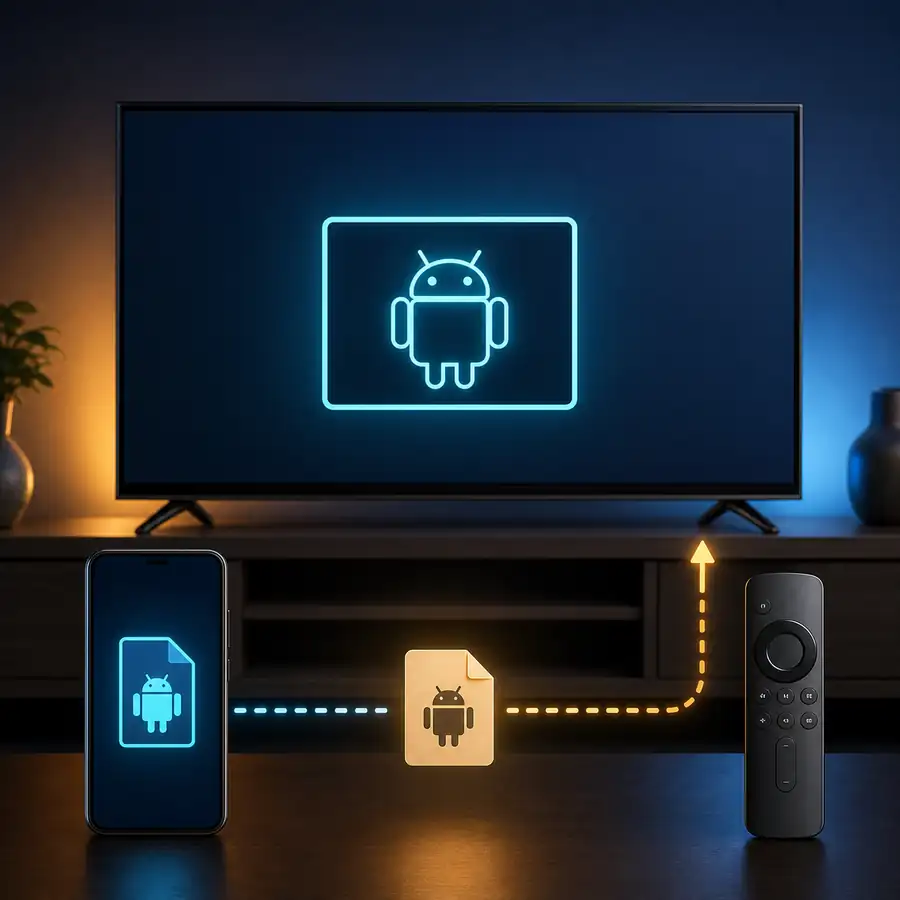
When the checks are acceptable, prepare a rollback before installing. Preserve app data or a working copy where possible, confirm free space and keep the file source documented. Grant install-from-unknown-sources access only to the app opening the file, then revoke it after installation. Open the app without entering sensitive accounts and test the home screen, navigation, playback and back button. On Android TV or Fire TV, test the remote and make sure the build is intended for television. If installation fails or behavior changes, uninstall calmly, run Play Protect and remove the installer rather than repeating random downloads.
- Keep the source and package details before pressing Install.
- Grant temporary access to the one app opening the file, then revoke it.
- Test core functions without entering banking or primary account details.
- Know how to remove the app and scan the device before trying an alternative.
7. Watch for red flags after installation
Post-install observation completes the verify Shabakaty APK before installing workflow; it does not replace the earlier checks. Watch for ads outside the app, prompts to install unrelated software, sudden battery or data use, or new permission requests after a normal screen. On a phone, review the privacy dashboard and permissions; on a TV, watch the remote and network behavior. Do not sign in with a primary account inside an unconfirmed modified build, and do not treat continued playback as proof of authenticity. If something feels wrong, disconnect temporarily, note the package name, uninstall, run a scan and change credentials from a clean device.
- Pop-ups outside the app or unknown new apps are stop signs.
- Watch battery, data and permission changes during the first hours.
- Do not enter sensitive accounts into a modified or unknown-signer build.
- Uninstall and scan the device when unusual behavior repeats.
A practical Shabakaty APK verification order
-
Name the app
Decide whether the file is for Cinemana, Share or TV, and whether an APK is needed at all.
-
Record its identity
Write down the source, package, version, size, Android requirement and extension before transfer.
-
Compare evidence
Check the signature or SHA-256 when a reference exists, then read permissions and Play Protect warnings.
-
Install temporarily
Allow the file-opening app only, test core behavior and avoid sensitive credentials.
-
Observe and roll back
Revoke access, watch the device, and remove the file or scan it when a red flag appears.
Common verification problems
The signer differs from the older build
Do not remove the working app immediately. Recheck the source and package, save your data and use a build signed by the same publisher when one is available.
Play Protect warns about the file
Stop and read the warning. Look for an official source or a verifiable build instead of disabling the scan to get past the message.
The file is XAPK or APKS and will not open
It may contain split packages. Do not rename it; follow the publisher's method or choose a verified compatible single APK.
The app works but shows strange ads
Disconnect if needed, review permissions, uninstall, run Play Protect and change any password entered from a clean device.
Official sources and verification limits
This guide was reviewed on November 16, 2026 using Google's Play Protect help, Google's APK transparency verification details and Android app-signing documentation. Those sources explain verification tools; they do not prove that a particular Shabakaty file is safe or current. The page makes no latest-version claim and provides no unverified direct download. Check the publisher source and package on the day you install.
- Google Play Protect help - Explains scanning and warnings for apps installed outside Google Play.
- Google APK transparency verification - Technical reference for reading a package and building a verification request.
- Android app signing documentation - Explains how signing relates to developer identity and updates.
- General APK installation guide - Installation steps after the source and package checks are complete.
Choose the next guide after verification
Shabakaty APK download guide
Separate Cinemana, Share and TV and choose a clear download path before checking the file.
Choose a Shabakaty appAPK installation instructions
Follow installation and permission steps after the file identity is understood.
Open installation instructionsInstall APK on Android TV
Check television compatibility and remote navigation when the package targets a TV.
Read the Android TV guideShabakaty not working
Use this for problems that appear after installation or vary by network and app.
Start troubleshootingShabakaty Share guide
Separate opening Share in a browser from installing the Share application.
Open the Share guideFAQ: verify Shabakaty APK before installing
Does verifying Shabakaty APK before installing prove it is safe?
No. It combines source, signature, permissions and Play Protect signals, but no single check is an absolute guarantee. Do not install when the source or signer remains unknown.
Is a version number enough to identify an original APK?
No. Match the package, developer, signature, size and source. Different files can show the same number, and a higher number can have no clear relationship to the publisher.
What should I do when Play Protect blocks the install?
Stop and read the warning, then look for an official or verifiable build. Do not disable Play Protect simply to bypass the message, especially when sensitive permissions are involved.
Can I rename XAPK to APK?
No. XAPK and APKS may contain multiple or split packages. Changing the extension does not make a valid APK; follow the publisher's method or choose a verified single package.
How do I roll back after installing a suspicious file?
Disconnect if needed, note the package name, uninstall the app, run Play Protect and remove the installer. Change credentials you entered from a clean device.
Are the steps different on Android TV or Fire TV?
The principles are the same, but transfer, permissions and remote controls differ. Check the file on a trusted phone or computer first, then use the matching TV guide and test navigation.