Quick answer
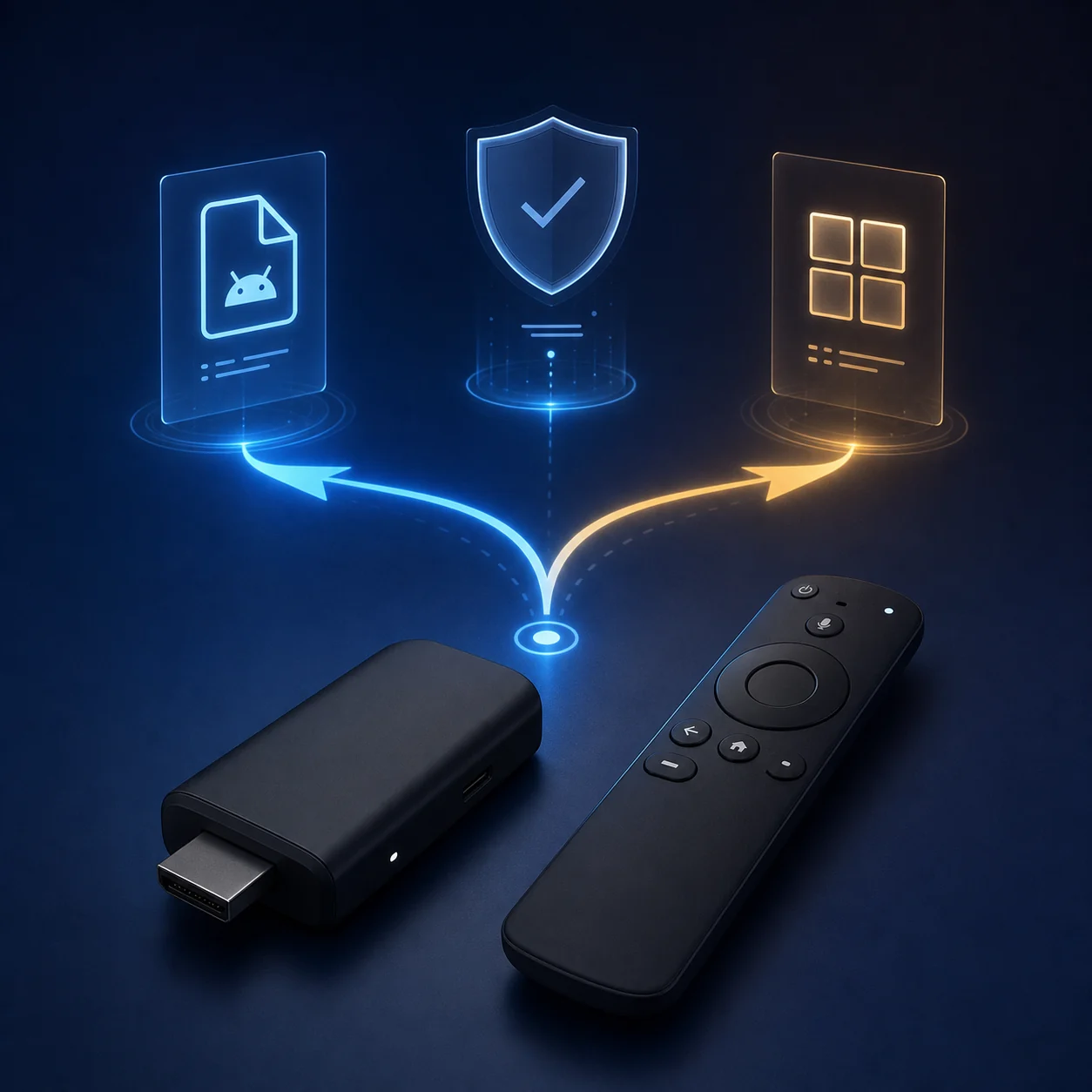
You can only follow the classic APK sideload flow when the Firestick model and operating system support Android APK packages. First check the device software and the app's TV compatibility. If an official Amazon Appstore or TV build exists, use it. For a verified package, transfer it through a method your device supports, allow installation only for the file-opening app, test the remote and turn the permission off afterward. This guide does not provide an APK download link and does not claim that every Fire TV device accepts APK files.
| Primary intent | Install APK apps on Firestick with a compatibility-first workflow |
|---|---|
| Platform gate | Confirm Fire OS versus a newer Fire TV platform before using APK steps |
| Package check | A single APK is different from XAPK, APKS or another split/bundle format |
| Download policy | No unverified APK link or app-specific version claim is included |
Check the Fire TV operating system before installing anything
Open the device settings and identify the software family and model. Older instructions often assume Fire OS menus and Android APK support; newer Fire TV hardware can follow a different application model. If the device does not clearly support APK installation, stop and use its official app store or the manufacturer's current documentation.
- Record the Fire TV model, software version and available storage.
- Do not treat the word Firestick as proof that every model accepts the same package format.
- Keep the official store route as the fallback when the platform or menu names do not match.
Use the Amazon Appstore or an official TV version first
Search for the app in the Amazon Appstore and check the publisher, TV support and recent update notes. A TV-specific release is usually easier to control with a remote than a phone-first APK. Sideloading should be the exception for a package you can verify, not the default way to find an app.
- Prefer a listing from the app publisher or an official service page.
- Compare the package name and supported Android/Fire TV versions before transfer.
- Avoid pages that promise a universal or latest Firestick APK without a verifiable publisher.
Verify the APK package and source
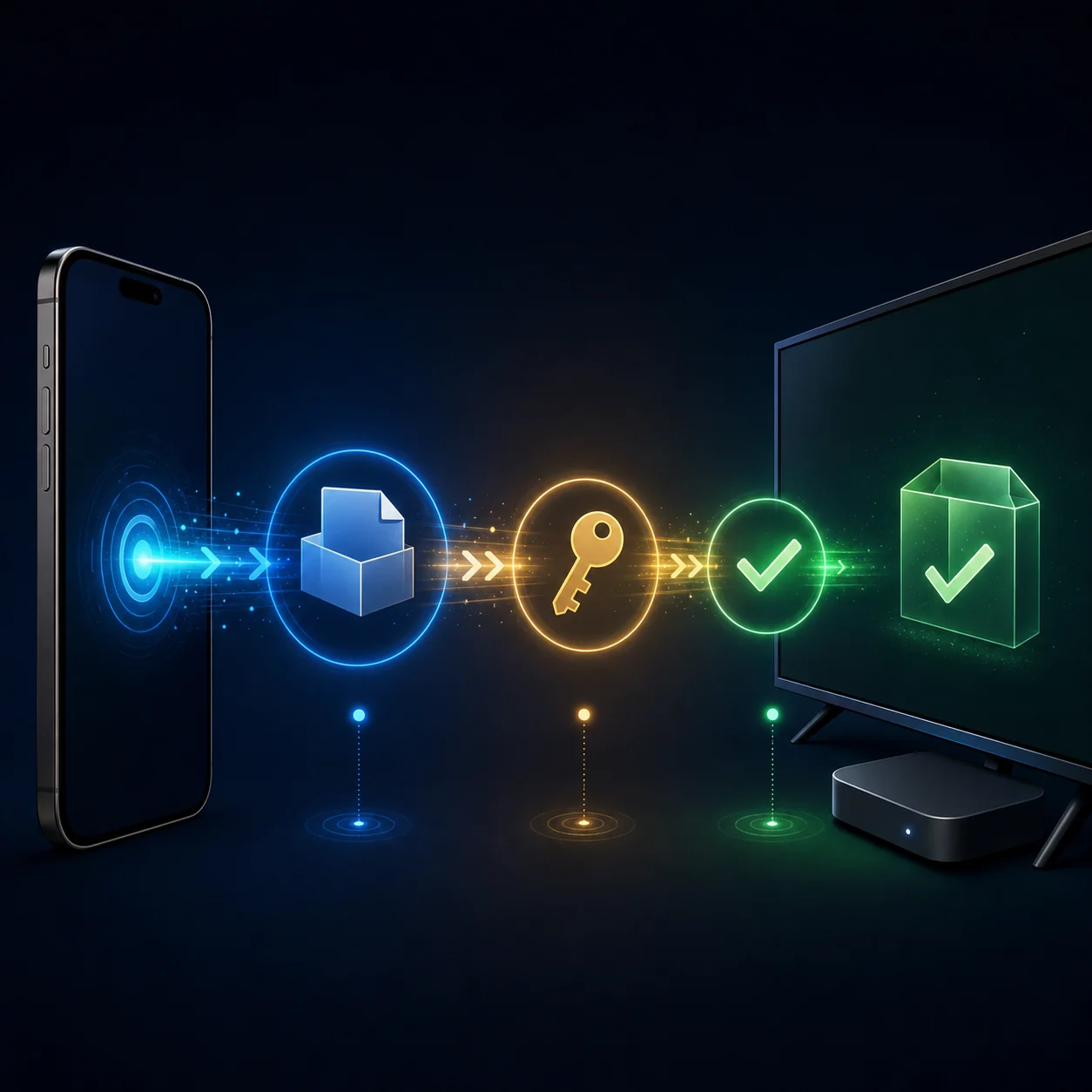
Use a source that identifies the publisher and release, and scan the file with the security tools available on your device. Confirm whether the file is a single APK or a bundle such as XAPK/APKS. A bundle may need a compatible installer and may not be a suitable Fire TV package. Never use a direct file merely because a search result labels it safe.
- Match the app name, publisher, version and architecture where the publisher documents them.
- Treat unexpected requests for contacts, accessibility or device administration as a stop signal.
- Keep a copy of the original file only until the installation has been tested.
Transfer an APK to Firestick
Choose the transfer method that your exact model supports. A phone-to-TV transfer app, a local network share or a USB drive can all be useful, but USB ports and file-manager behavior vary by device and adapter. The transfer step only moves the file; it does not prove that the package is compatible or safe.
- Keep the filename recognizable and avoid opening files from an unknown shared folder.
- If you use USB, eject it safely and keep the drive disconnected after the copy.
- If the file manager cannot see the package, check storage permission and the folder path before retrying.
Enable a temporary install permission
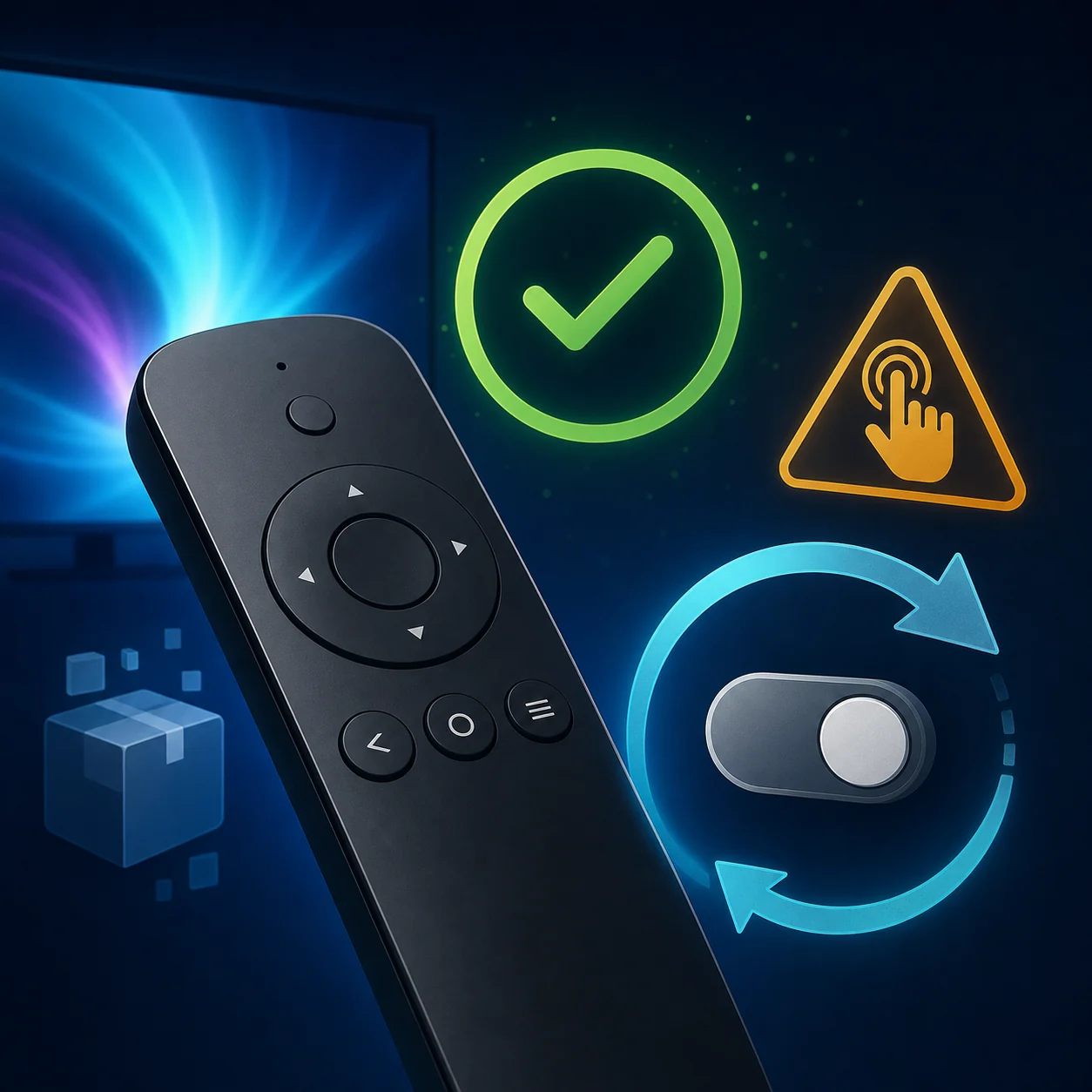
When Fire OS displays a permission for installing from an unknown source, grant it only to the app that is opening the verified package. Install once, then return to settings and disable that permission. Menu labels can change by software version, so follow the wording shown on the device rather than a screenshot from another model.
- Allow the file manager or transfer tool, not every application on the device.
- Cancel if the prompt names an unexpected app or the package is not the file you checked.
- Revoke the permission after the installation and restart if the device requests it.
Test remote compatibility and clean up
An APK can install successfully and still be unusable from a Fire TV remote. Test the first screen, directional focus, Back, menus, sign-in and playback. Phone-first apps may expect touch gestures or a portrait layout. If the app fails this test, uninstall it and use the official TV build instead of adding random accessibility tools.
- Check that every important control can receive focus with the D-pad.
- Remove the APK installer, transfer copy and unnecessary permissions after testing.
- Write down the package name before uninstalling so you can identify the right app later.
A controlled Firestick APK installation sequence
-
1. Identify the platform
Confirm the model and software family. Do not proceed when the device is a newer platform that does not document the classic APK route.
-
2. Choose the official route
Search the Amazon Appstore or the publisher's TV page first. Only continue with sideloading when you have a verified reason and a compatible package.
-
3. Transfer the verified file
Move the single APK with a supported network, phone or USB method. Keep the source, filename and package identity visible.
-
4. Allow, install and test
Give one file-opening app temporary permission, install the package and test the full remote path before signing in or importing data.
-
5. Revoke and roll back
Disable the permission, remove leftover files and uninstall the package if it fails compatibility, privacy or remote checks.
Common Firestick APK problems
The install option is missing
Recheck the platform and menu path. The model may not use the older Fire OS APK flow, or the file manager may not have permission to open the package.
The package says it is not compatible
Check Android/Fire TV version, CPU architecture, screen target and whether the file is actually XAPK/APKS or a split bundle. Look for the publisher's TV build instead of forcing it.
The app opens but the remote cannot select controls
The APK may be phone-first and depend on touch input. Test with a mouse only for diagnosis, then prefer a TV-compatible release if D-pad focus remains broken.
The file manager cannot find the APK
Check the transfer folder, storage permission, USB mounting and filename. Copy the verified file again rather than opening an unknown file from a shared folder.
Official references and freshness notes
This generic guide was checked on August 22, 2026 against official Amazon, Android Developers and Google support material. It is not tied to a particular APK release, so there is no app version or download CTA to refresh. Fire TV software and menu names can change; verify the current device documentation before installing.
- Amazon Fire TV help - Use the current device help and Appstore route for model-specific instructions.
- Amazon Fire TV developer documentation - Official Fire OS documentation explains Fire TV app compatibility and platform boundaries.
- Amazon Vega developer documentation - Vega devices use a newer platform and its developer-mode package flow differs from legacy APK steps.
- Android Debug Bridge documentation - Official Android reference for device connections and compatible package installation.
- Google Play Protect help - Background on checks for apps installed outside Google Play.
Choose the next guide
Android TV APK installation
Use this counterpart when the device is Google TV or Android TV rather than Fire TV.
Read the Android TV APK guideGeneral APK installation instructions
Use this for the standard Android install prompt, blocked installation messages and post-install checks.
Open the APK install instructionsShabakaty download guide
Use this when you are choosing between Cinemana, Share, TV and Store before selecting a brand-specific app.
Compare Shabakaty download routesShabakaty TV guide
Use this for Shabakaty TV service questions rather than a generic Firestick sideload.
Read the Shabakaty TV guideHow to Install APK Apps on Firestick FAQ
Can I install any APK on Firestick?
No. Compatibility depends on the device platform, package type, Android version, architecture and TV input support. Confirm the model first and prefer the official TV release when one exists.
How do I install an APK on Firestick with a USB drive?
Only use USB when your model and adapter expose usable storage. Copy a verified single APK, open it with a trusted file manager, allow that file manager temporarily, install and test it, then disable the permission and eject the drive.
Can I install XAPK or APKS on Firestick like a normal APK?
Not necessarily. XAPK, APKS and similar files can contain split packages or extra data. Use a compatible installer documented by the publisher, or find a supported single APK or official TV build.
Is sideloading an APK on Firestick safe?
It adds source and permission risk. Use a verifiable publisher, scan the file, grant permission only to the app opening it, keep Play Protect or equivalent checks active and revoke the permission after testing.
Why does the APK install but fail with the Firestick remote?
A phone-first app may depend on touch input, portrait layout or gestures. Check D-pad focus, Back and playback. If those fail, uninstall it and use a TV-compatible listing instead of forcing a shortcut.