Quick answer
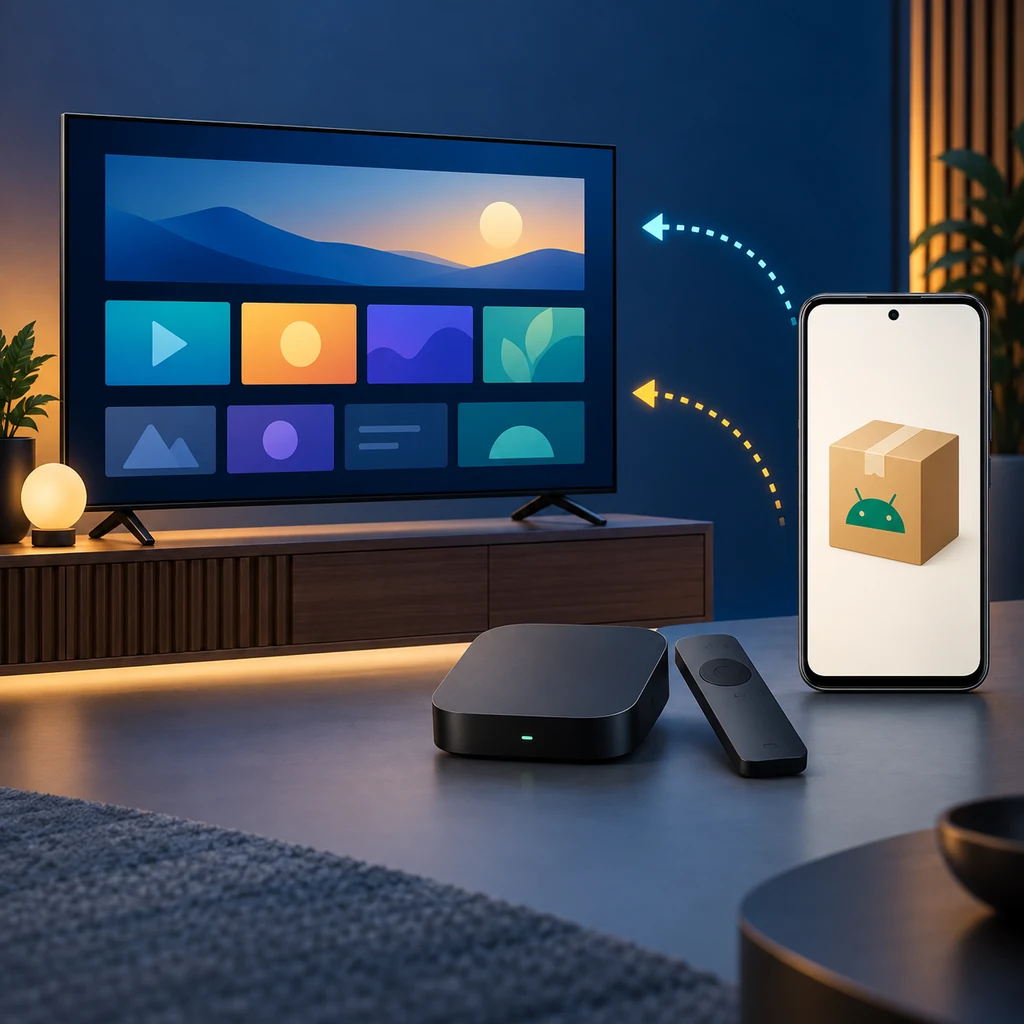
You usually cannot install a regular Android APK directly on a Tizen Samsung Smart TV. Start with Home, Apps, or Smart Hub and find a TV-supported version. Copying an APK to USB does not add Android to Tizen, and renaming XAPK or APKS does not create a valid APK. If the app is Android-only, use a compatible Android TV, Google TV, or Fire TV device over HDMI and follow that platform's guide. This page does not provide an unverified APK link or label a package official, safe, or compatible with every model.
| Primary query | How to install APK on Samsung Smart TV |
|---|---|
| TV platform | Many Samsung Smart TVs use Tizen, with differences by model, year, region, and firmware. |
| APK meaning | An APK is an Android package; it is not automatically a Tizen TV application. |
| Preferred route | Home, Apps, or Smart Hub, then search for a supported TV version from the store or developer. |
| Practical fallback | A compatible Android TV, Google TV, or Fire TV device when the app is Android-only. |
| Scope note | This guide does not verify a latest app version or publish an unverified direct APK download. |
1. Understand Tizen and Android before looking for an APK
The first question is which operating system runs the screen. Samsung Smart TV is a device category, not a promise that it is Android TV. Many models use Tizen, with a different app format, store, permissions, and distribution process. An APK is an Android package that expects an Android runtime and controls designed for Android. A matching app name or Smart TV label does not prove a Tizen build; the page may describe a phone, Android TV box, or web wrapper.
- Check the model, year, region, and software in settings.
- Separate a Tizen television from an Android TV box on HDMI.
- Treat Smart TV wording on an APK page as a claim to verify.
- Look for a listing that names Samsung TV or Tizen.
2. Start with Smart Hub or Apps using the official path
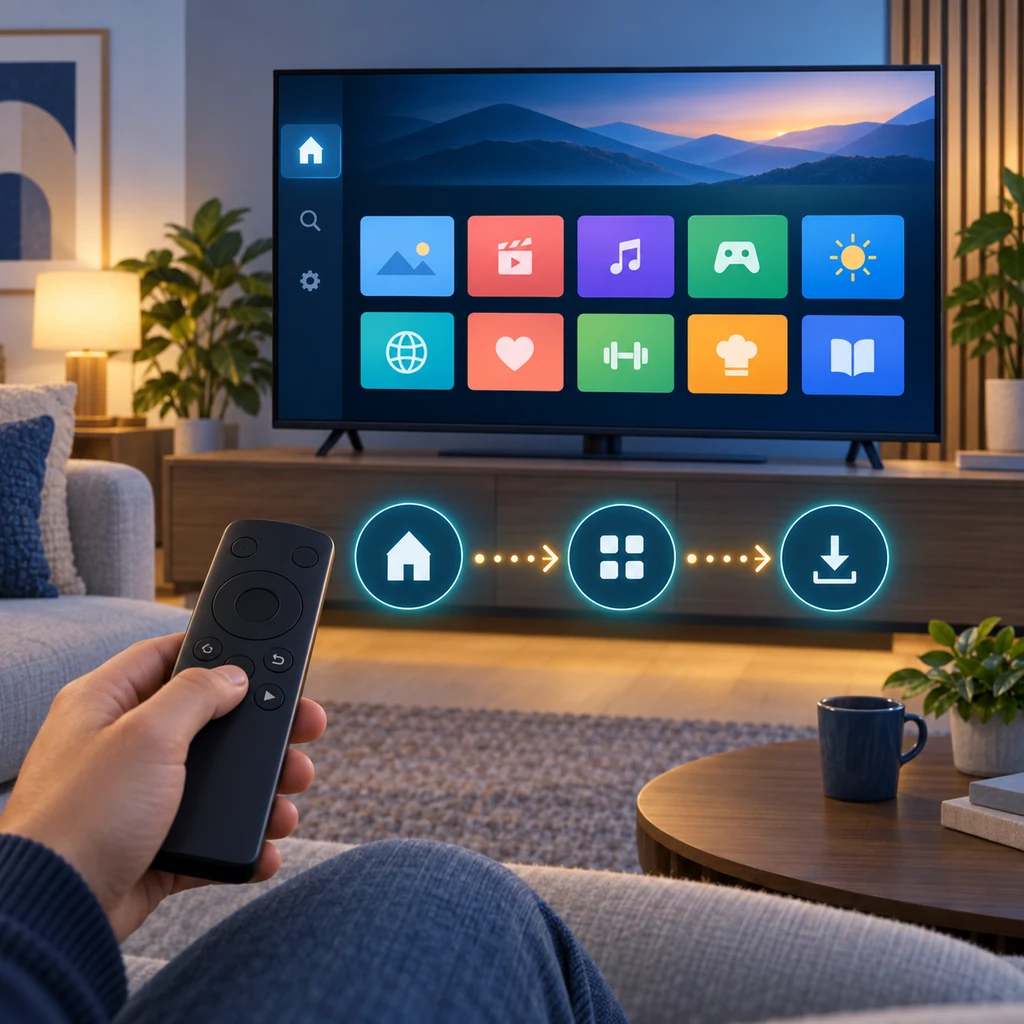
Start with the route designed for the TV. Press Home, open Apps or Smart Hub, and search. Check the developer, description, region, and compatibility before selecting Install or Add to Home. Menu labels vary by Samsung generation, and some regions require a Samsung account. The store cannot offer every Android app, but it reduces modified-package risk and simplifies updates or removal.
- Search for Samsung Smart TV or Tizen support, not only a generic Android APK.
- Compare developer, permissions, description, and supported devices.
- If the app is missing, check model, region, account, and firmware before downloading.
- Test remote focus, search, playback, back, and exit after installation.
3. Why USB and developer mode do not solve the APK problem
Copying an APK to USB may show the file in a browser, but it does not add Android components to Tizen. The TV may ignore it, mark it unsupported, or offer no install action. Tizen developer tools are for platform-specific apps, not a general Android sideload switch. Renaming XAPK or APKS to .apk does not rebuild split packages. Stop if a page asks you to disable protection, install an unknown certificate, or run an unexplained installer.
- Do not rename a package when the publisher has not explained it.
- Do not enable an unknown certificate or developer setting because an app is absent.
- Avoid files that hide developer, version, package name, size, or permissions.
- Use USB for a trusted file on a compatible device, not as proof of Tizen support.
4. Choose a practical alternative when the app is Android-only
If an app requires Android, an external Android TV, Google TV, or Fire TV device over HDMI is often simplest. Samsung remains the display while the external device supplies the expected operating system. Check model, Android or Fire OS version, processor, remote, and package source. This separates the screen platform from the app platform; it does not bypass subscriptions, regional restrictions, or content rights.
- Identify whether the external device uses Android TV, Google TV, or Fire OS.
- Prefer the official store or a documented developer source before sideloading.
- Test resolution, audio, Wi-Fi, remote navigation, and back behavior.
- Keep Samsung Smart TV and external Android apps as separate platform choices.
5. Check compatibility and safety before using an external file
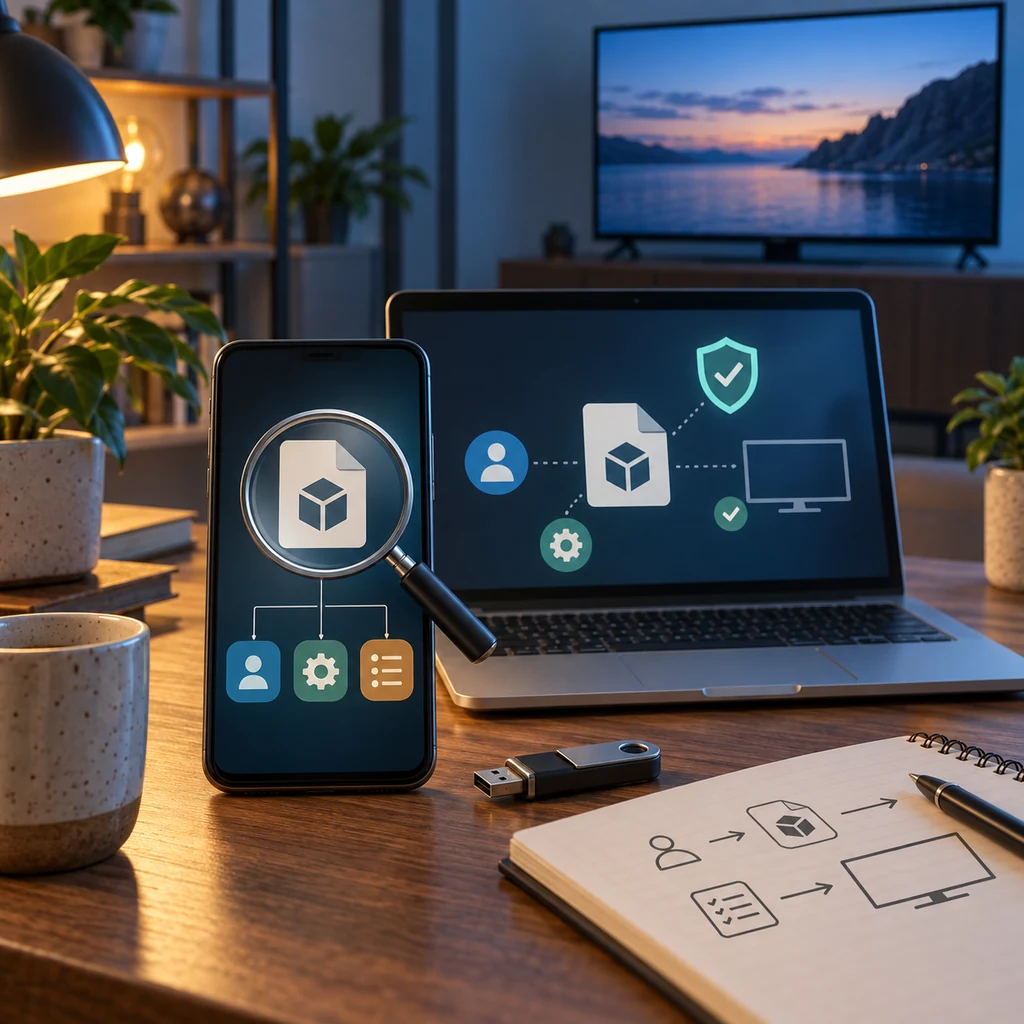
Before opening an APK, collect package name, developer, version, update date, size, required Android version, CPU architecture, permissions, and source. These details do not make it official, but contradictions can expose a modified or unreliable listing. Compare with a developer or store page and scan on another trusted device before transfer. For Samsung TV, also ask whether a real Tizen version exists or Smart TV is only marketing. If unclear, do not install.
- Compare package name and developer across more than one trustworthy source.
- Be cautious of unrelated permissions, extra installers, or hidden redirects.
- Do not call a package official, safe, or latest without checkable evidence.
- Delete temporary files and disable temporary permissions after testing.
A quick decision path before installing APK on Samsung Smart TV
-
Identify the platform
Confirm whether you use built-in Tizen or a connected Android TV device.
-
Search the official store
Use Home, Apps, or Smart Hub to find a version naming your model, region, or Tizen.
-
Inspect the package
For Android-only apps, check source, package, version, permissions, and format. Do not rename XAPK or APKS.
-
Pick the right device
Use Android TV, Google TV, or Fire TV only when the package targets it.
-
Test and clean up
Test remote, network, playback, and exit; remove unsuitable packages and temporary permissions.
Common APK problems on Samsung TV
The APK does not appear in the file browser
This can be expected on Tizen because there is no Android installation runtime. Search Apps for a Tizen version or use a compatible Android device.
The TV says the file is unsupported
Check platform and package type. Do not rename XAPK or APKS or use an unknown converter; find a supported TV build.
The app exists on a web page but not in Smart Hub
The page may describe a phone, TV box, another region, or a wrapper. Confirm developer, model, and platform before downloading.
The app opens but the remote cannot move through controls
It may be designed for touch or portrait screens. A mouse reveals the issue but does not make it TV-ready; choose a compatible version.
The file asks you to disable protection or add an unknown certificate
Stop. Weakening protection does not prove compatibility and increases risk when publisher and source are unclear.
Official references and freshness limits
This guide was reviewed on September 19, 2026 using Samsung, Samsung Developer, and Android TV references. It explains platform boundaries, not one specific app, so it does not claim a latest version or publish a direct APK link. Recheck the model and source on installation day.
- Samsung official support - Use the exact model support area to confirm menus, updates, and compatible apps.
- Samsung Smart TV Developer - Official Smart TV and Tizen development reference, not a general Android sideload guide.
- Samsung TV Seller Office - Official distribution information for compatible Samsung TV apps.
- Android TV documentation - Reference for the separate Android TV environment and compatible packages.
Choose the guide for your actual device
Install APK on Android TV
For a real Android TV or Google TV device, with USB, ADB, XAPK checks, and remote testing.
Read the Android TV guideInstall APK on Fire Stick
For Fire TV with Fire OS, keeping its steps separate from Tizen.
Open the Fire Stick guideCinemana on TV
For Cinemana, Leanback layout, and playback on a compatible TV device.
Read the Cinemana TV guideShabakaty TV guide
For channels, live streams, and matches, not proof that a random APK works on Samsung TV.
Open the Shabakaty TV guideWhen Shabakaty is not working
For network, app, and service troubleshooting after choosing a compatible platform.
Open the troubleshooting guideFAQ about installing APK on Samsung Smart TV
Can I install any APK directly on a Samsung Smart TV?
Usually not. Many Samsung TVs run Tizen, while an APK is an Android package. Look for a Tizen version in Apps or Smart Hub, or use compatible Android TV hardware.
Can I use USB to install an APK on Samsung TV?
USB may transfer or display a file, but it does not add Android support to Tizen. Seeing it is not proof of installability, and renaming the extension is unsafe.
What is the difference between Tizen and Android TV here?
Tizen is Samsung's Smart TV platform with its own app format and store. Android TV can run compatible Android packages, so files and installation differ.
Does developer mode allow any APK to be installed?
No. Developer tools depend on the platform and supported files; they do not turn Tizen into a general Android device. Do not add an unknown certificate.
What should I do if an app is missing from Smart Hub?
Check model, region, Samsung account, firmware, and developer documentation. If the page describes Android TV or a phone, use suitable hardware or a TV-supported alternative.
Is every app labeled Samsung Smart TV official?
No. Smart TV may be marketing language. Verify developer, platform, source, and compatibility; do not call a file official, safe, or latest without evidence.